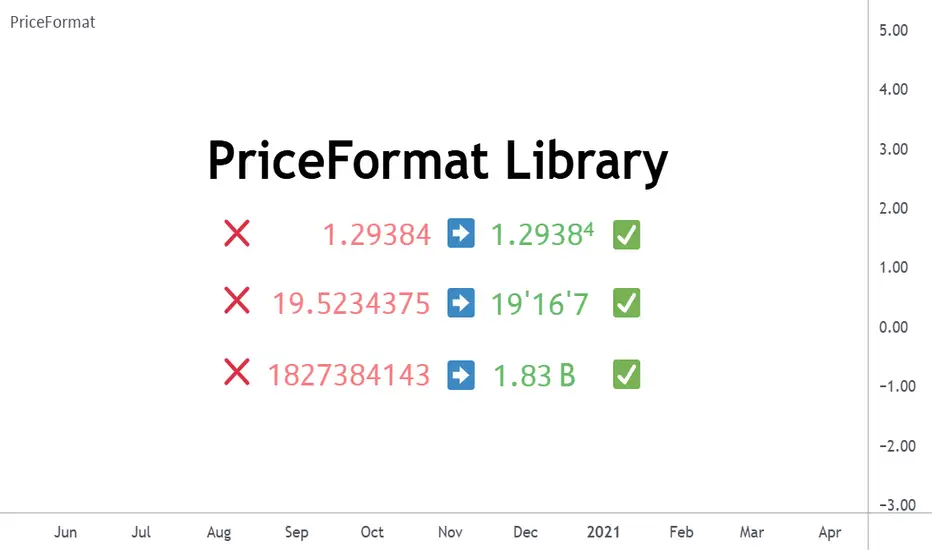
PriceFormatLibrary for automatically converting price values to formatted strings
matching the same format that TradingView uses to display open/high/low/close prices on the chart.
โโ OVERVIEW
This library is intended for Pine Coders who are authors of scripts that display numbers onto a user's charts. Typically, ๐๐๐.๐๐๐๐๐๐๐๐() would be used to convert a number into a string which can be displayed in a label / box / table, but this only works well for values that are formatted as a simple decimal number. The purpose of this library is to provide an easy way to create a formatted string for values which use other types of formats besides the decimal format.
The main functions exported by this library are:
๐๐๐๐๐๐๐ฟ๐๐๐๐() - creates a formatted string from a price value
๐๐๐๐๐๐๐๐ฟ๐๐๐๐๐ฒ๐๐๐๐๐() - creates a formatted string from the distance between two prices
๐๐๐๐๐๐๐๐() - an alternative to the built-in ๐๐๐.๐๐๐๐๐๐๐๐(๐๐๐๐๐, ๐๐๐๐๐๐)
This library also exports some auxiliary functions which are used under the hood of the previously mentioned functions, but can also be useful to Pine Coders that need fine-tuned control for customized formatting of numeric values:
Functions that determine information about the current chart:
๐๐๐ต๐๐๐๐๐๐๐๐๐๐ต๐๐๐๐๐(), ๐๐๐
๐๐๐๐๐๐ต๐๐๐๐๐(), ๐๐๐ฟ๐๐๐๐๐๐๐๐๐๐ต๐๐๐๐๐(), ๐๐๐ณ๐๐๐๐๐๐๐ต๐๐๐๐๐(), ๐๐๐ฟ๐๐๐๐ต๐๐๐๐๐()
Functions that convert a ๐๐๐๐๐ value to a formatted string:
๐๐๐ณ๐๐๐๐๐๐(), ๐๐๐ฟ๐๐๐(), ๐๐๐ต๐๐๐๐๐๐๐๐๐(), ๐๐๐
๐๐๐๐๐()
โโ EXAMPLES
โข Simple Example
This example shows the simplest way to utilize this library.
//@version=6
indicator("Simple Example")
import n00btraders/PriceFormat/1
var table t = table.new(position.middle_right, 2, 1, bgcolor = color.new(color.blue, 90), force_overlay = true)
if barstate.isfirst
table.cell(t, 0, 0, "Current Price: ", text_color = color.black, text_size = 40)
table.cell(t, 1, 0, text_color = color.blue, text_size = 40)
if barstate.islast
string lastPrice = close.formatPrice() // Simple, easy way to format price
table.cell_set_text(t, 1, 0, lastPrice)
โข Complex Example
This example calls all of the main functions and uses their optional arguments.
//@version=6
indicator("Complex Example")
import n00btraders/PriceFormat/1
// Enum values that can be used as optional arguments
precision = input.enum(PriceFormat.Precision.DEFAULT)
language = input.enum(PriceFormat.Language.ENGLISH)
// Main library functions used to create formatted strings
string formattedOpen = open.formatPrice(precision, language, allowPips = true)
string rawOpenPrice = PriceFormat.tostring(open, format.price)
string formattedClose = close.formatPrice(precision, language, allowPips = true)
string rawClosePrice = PriceFormat.tostring(close, format.price)
= PriceFormat.measurePriceChange(open, close, precision, language, allowPips = true)
// Labels to display formatted values on chart
string prices = str.format("Open: {0} ({1}) Close: {2} ({3})", formattedOpen, rawOpenPrice, formattedClose, rawClosePrice)
string change = str.format("Change (close - open): {0} / {1}", distance, ticks)
label.new(chart.point.now(high), prices, yloc = yloc.abovebar, textalign = text.align_left, force_overlay = true)
label.new(chart.point.now(low), change, yloc = yloc.belowbar, style = label.style_label_up, force_overlay = true)
โโ NOTES
โข Function Descriptions
The library source code uses Markdown for the exported functions. Hover over a function/method call in the Pine Editor to display formatted, detailed information about the function/method.
โข Precision Settings
The Precision option in the chart settings can change the format of how prices are displayed on the chart. Since the user's selected choice cannot be known through any Pine built-in variable, this library provides a ๐ฟ๐๐๐๐๐๐๐๐ enum that can be used as an optional script input for the user to specify their selected choice.
โข Language Settings
The Language option in the user menu can change the decimal/grouping separators in the prices that are displayed on the chart. Since the user's selected choice cannot be known through any Pine built-in variable, this library provides a ๐ป๐๐๐๐๐๐๐ enum that can be used as an optional script input for the user to specify their selected choice.
โโ EXPORTED FUNCTIONS
method formatPrice(price, precision, language, allowPips)
โโFormats a price value to match how it would be displayed on the user's current chart.
โโNamespace types: series float, simple float, input float, const float
โโParameters:
โโโโ price (float) : The value to format.
โโโโ precision (series Precision) : A Precision.* enum value.
โโโโ language (series Language) : A Language.* enum value.
โโโโ allowPips (simple bool) : Whether to allow decimal numbers to display as pips.
โโReturns: Automatically formatted price string.
measurePriceChange(startPrice, endPrice, precision, language, allowPips)
โโMeasures a change in price in terms of both distance and ticks.
โโParameters:
โโโโ startPrice (float) : The starting price.
โโโโ endPrice (float) : The ending price.
โโโโ precision (series Precision) : A Precision.* enum value.
โโโโ language (series Language) : A Language.* enum value.
โโโโ allowPips (simple bool) : Whether to allow decimal numbers to display as pips.
โโReturns: A tuple of formatted strings: .
method tostring(value, format)
โโAlternative to the Pine `str.tostring(value, format)` built-in function.
โโNamespace types: series float, simple float, input float, const float
โโParameters:
โโโโ value (float) : (series float) The value to format.
โโโโ format (string) : (series string) The format string.
โโReturns: String in the specified format.
isFractionalFormat()
โโDetermines if the default behavior of the chart's price scale is to use a fractional format.
โโReturns: True if the chart can display prices in fractional format.
isVolumeFormat()
โโDetermines if the default behavior of the chart's price scale is to display prices as volume.
โโReturns: True if the chart can display prices as volume.
isPercentageFormat()
โโDetermines if the default behavior of the chart's price scale is to display percentages.
โโReturns: True if the chart can display prices as percentages.
isDecimalFormat()
โโDetermines if the default behavior of the chart's price scale is to use a decimal format.
โโReturns: True if the chart can display prices in decimal format.
isPipsFormat()
โโDetermines if the current symbol's prices can be displayed as pips.
โโReturns: True if the chart can display prices as pips.
method asDecimal(value, precision, minTick, decimalSeparator, groupingSeparator, eNotation)
โโConverts a number to a string in decimal format.
โโNamespace types: series float, simple float, input float, const float
โโParameters:
โโโโ value (float) : The value to format.
โโโโ precision (int) : Number of decimal places.
โโโโ minTick (float) : Minimum tick size.
โโโโ decimalSeparator (string) : The decimal separator.
โโโโ groupingSeparator (string) : The thousands separator, aka digit group separator.
โโโโ eNotation (bool) : Whether the result should use E notation.
โโReturns: String in decimal format.
method asPips(value, priceScale, minMove, minMove2, decimalSeparator, groupingSeparator)
โโConverts a number to a string in decimal format with the last digit replaced by a superscript.
โโNamespace types: series float, simple float, input float, const float
โโParameters:
โโโโ value (float) : The value to format.
โโโโ priceScale (int) : Price scale.
โโโโ minMove (int) : Min move.
โโโโ minMove2 (int) : Min move 2.
โโโโ decimalSeparator (string) : The decimal separator.
โโโโ groupingSeparator (string) : The thousands separator, aka digit group separator.
โโReturns: String in decimal format with an emphasis on the pip value.
method asFractional(value, priceScale, minMove, minMove2, fractionalSeparator1, fractionalSeparator2)
โโConverts a number to a string in fractional format.
โโNamespace types: series float, simple float, input float, const float
โโParameters:
โโโโ value (float) : The value to format.
โโโโ priceScale (int) : Price scale.
โโโโ minMove (int) : Min move.
โโโโ minMove2 (int) : Min move 2.
โโโโ fractionalSeparator1 (string) : The primary fractional separator.
โโโโ fractionalSeparator2 (string) : The secondary fractional separator.
โโReturns: String in fractional format.
method asVolume(value, precision, minTick, decimalSeparator, groupingSeparator, spacing)
โโConverts a number to a string in volume format.
โโNamespace types: series float, simple float, input float, const float
โโParameters:
โโโโ value (float) : The value to format.
โโโโ precision (int) : Maximum number of decimal places.
โโโโ minTick (float) : Minimum tick size.
โโโโ decimalSeparator (string) : The decimal separator.
โโโโ groupingSeparator (string) : The thousands separator, aka digit group separator.
โโโโ spacing (string) : The whitespace separator.
โโReturns: String in volume format.
Priceformatting
FvgPanelโโOVERVIEW
This library provides functionalities for creating and managing a display panel within a Pine Scriptโข indicator. Its primary purpose is to offer a structured way to present Fair Value Gap (FVG) information, specifically the nearest bullish and bearish FVG levels across different timeframes (Current, MTF, HTF), directly on the chart. The library handles the table's structure, header initialization, and dynamic cell content updates.
โโCONCEPTS
The core of this library revolves around presenting summarized FVG data in a clear, tabular format. Key concepts include:
FVG Data Aggregation and Display
The panel is designed to show at-a-glance information about the closest active FVG mitigation levels. It doesn't calculate these FVGs itself but relies on the main script to provide this data. The panel is structured with columns for timeframes (TF), Bullish FVGs, and Bearish FVGs, and rows for "Current" (LTF), "MTF" (Medium Timeframe), and "HTF" (High Timeframe).
The `panelData` User-Defined Type (UDT)
To facilitate the transfer of information to be displayed, the library defines a UDT named `panelData`. This structure is central to the library's operation and is designed to hold all necessary values for populating the panel's data cells for each relevant FVG. Its fields include:
Price levels for the nearest bullish and bearish FVGs for LTF, MTF, and HTF (e.g., `nearestBullMitLvl`, `nearestMtfBearMitLvl`).
Boolean flags to indicate if these FVGs are classified as "Large Volume" (LV) (e.g., `isNearestBullLV`, `isNearestMtfBearLV`).
Color information for the background and text of each data cell, allowing for conditional styling based on the FVG's status or proximity (e.g., `ltfBullBgColor`, `mtfBearTextColor`).
The design of `panelData` allows the main script to prepare all display-related data and styling cues in one object, which is then passed to the `updatePanel` function for rendering. This separation of data preparation and display logic keeps the library focused on its presentation task.
Visual Cues and Formatting
Price Formatting: Price levels are formatted to match the instrument's minimum tick size using an internal `formatPrice` helper function, ensuring consistent and accurate display.
Large FVG Icon: If an FVG is marked as a "Large Volume" FVG in the `panelData` object, a user-specified icon (e.g., an emoji) is prepended to its price level in the panel, providing an immediate visual distinction.
Conditional Styling: The background and text colors for each FVG level displayed in the panel can be individually controlled via the `panelData` object, enabling the main script to implement custom styling rules (e.g., highlighting the overall nearest FVG across all timeframes).
Handling Missing Data: If no FVG data is available for a particular cell (i.e., the corresponding level in `panelData` is `na`), the panel displays "---" and uses a specified background color for "Not Available" cells.
โโCALCULATIONS AND USE
Using the `FvgPanel` typically involves a two-stage process: initialization and dynamic updates.
Step 1: Panel Creation
First, an instance of the panel table is created once, usually during the script's initial setup. This is done using the `createPanel` function.
Call `createPanel()` with parameters defining its position on the chart, border color, border width, header background color, header text color, and header text size.
This function initializes the table with three columns ("TF", "Bull FVG", "Bear FVG") and three data rows labeled "Current", "MTF", and "HTF", plus a header row.
Store the returned `table` object in a `var` variable to persist it across bars.
// Example:
var table infoPanel = na
if barstate.isfirst
infoPanel := panel.createPanel(
position.top_right,
color.gray,
1,
color.new(color.gray, 50),
color.white,
size.small
)
Step 2: Panel Updates
On each bar, or whenever the FVG data changes (typically on `barstate.islast` or `barstate.isrealtime` for efficiency), the panel's content needs to be refreshed. This is done using the `updatePanel` function.
Populate an instance of the `panelData` UDT with the latest FVG information. This includes setting the nearest bullish/bearish mitigation levels for LTF, MTF, and HTF, their LV status, and their desired background and text colors.
Call `updatePanel()`, passing the persistent `table` object (from Step 1), the populated `panelData` object, the icon string for LV FVGs, the default text color for FVG levels, the background color for "N/A" cells, and the general text size for the data cells.
The `updatePanel` function will then clear previous data and fill the table cells with the new values and styles provided in the `panelData` object.
// Example (inside a conditional block like 'if barstate.islast'):
var panelData fvgDisplayData = panelData.new()
// ... (logic to populate fvgDisplayData fields) ...
// fvgDisplayData.nearestBullMitLvl = ...
// fvgDisplayData.ltfBullBgColor = ...
// ... etc.
if not na(infoPanel)
panel.updatePanel(
infoPanel,
fvgDisplayData,
"๐ฅ", // LV FVG Icon
color.white,
color.new(color.gray, 70), // NA Cell Color
size.small
)
This workflow ensures that the panel is drawn only once and its cells are efficiently updated as new data becomes available.
โโNOTES
Data Source: This library is solely responsible for the visual presentation of FVG data in a table. It does not perform any FVG detection or calculation. The calling script must compute or retrieve the FVG levels, LV status, and desired styling to populate the `panelData` object.
Styling Responsibility: While `updatePanel` applies colors passed via the `panelData` object, the logic for *determining* those colors (e.g., highlighting the closest FVG to the current price) resides in the calling script.
Performance: The library uses `table.cell()` to update individual cells, which is generally more efficient than deleting and recreating the table on each update. However, the frequency of `updatePanel` calls should be managed by the main script (e.g., using `barstate.islast` or `barstate.isrealtime`) to avoid excessive processing on historical bars.
`series float` Handling: The price level fields within the `panelData` UDT (e.g., `nearestBullMitLvl`) can accept `series float` values, as these are typically derived from price data. The internal `formatPrice` function correctly handles `series float` for display.
Dependencies: The `FvgPanel` itself is self-contained and does not import other user libraries. It uses standard Pine Scriptโข table and string functionalities.
โโEXPORTED TYPES
panelData
โโRepresents the data structure for populating the FVG information panel.
โโFields:
โโโโ nearestBullMitLvl (series float) : The price level of the nearest bullish FVG's mitigation point (bottom for bull) on the LTF.
โโโโ isNearestBullLV (series bool) : True if the nearest bullish FVG on the LTF is a Large Volume FVG.
โโโโ ltfBullBgColor (series color) : Background color for the LTF bullish FVG cell in the panel.
โโโโ ltfBullTextColor (series color) : Text color for the LTF bullish FVG cell in the panel.
โโโโ nearestBearMitLvl (series float) : The price level of the nearest bearish FVG's mitigation point (top for bear) on the LTF.
โโโโ isNearestBearLV (series bool) : True if the nearest bearish FVG on the LTF is a Large Volume FVG.
โโโโ ltfBearBgColor (series color) : Background color for the LTF bearish FVG cell in the panel.
โโโโ ltfBearTextColor (series color) : Text color for the LTF bearish FVG cell in the panel.
โโโโ nearestMtfBullMitLvl (series float) : The price level of the nearest bullish FVG's mitigation point on the MTF.
โโโโ isNearestMtfBullLV (series bool) : True if the nearest bullish FVG on the MTF is a Large Volume FVG.
โโโโ mtfBullBgColor (series color) : Background color for the MTF bullish FVG cell.
โโโโ mtfBullTextColor (series color) : Text color for the MTF bullish FVG cell.
โโโโ nearestMtfBearMitLvl (series float) : The price level of the nearest bearish FVG's mitigation point on the MTF.
โโโโ isNearestMtfBearLV (series bool) : True if the nearest bearish FVG on the MTF is a Large Volume FVG.
โโโโ mtfBearBgColor (series color) : Background color for the MTF bearish FVG cell.
โโโโ mtfBearTextColor (series color) : Text color for the MTF bearish FVG cell.
โโโโ nearestHtfBullMitLvl (series float) : The price level of the nearest bullish FVG's mitigation point on the HTF.
โโโโ isNearestHtfBullLV (series bool) : True if the nearest bullish FVG on the HTF is a Large Volume FVG.
โโโโ htfBullBgColor (series color) : Background color for the HTF bullish FVG cell.
โโโโ htfBullTextColor (series color) : Text color for the HTF bullish FVG cell.
โโโโ nearestHtfBearMitLvl (series float) : The price level of the nearest bearish FVG's mitigation point on the HTF.
โโโโ isNearestHtfBearLV (series bool) : True if the nearest bearish FVG on the HTF is a Large Volume FVG.
โโโโ htfBearBgColor (series color) : Background color for the HTF bearish FVG cell.
โโโโ htfBearTextColor (series color) : Text color for the HTF bearish FVG cell.
โโEXPORTED FUNCTIONS
createPanel(position, borderColor, borderWidth, headerBgColor, headerTextColor, headerTextSize)
โโCreates and initializes the FVG information panel (table). Sets up the header rows and timeframe labels.
โโParameters:
โโโโ position (simple string) : The position of the panel on the chart (e.g., position.top_right). Uses position.* constants.
โโโโ borderColor (simple color) : The color of the panel's border.
โโโโ borderWidth (simple int) : The width of the panel's border.
โโโโ headerBgColor (simple color) : The background color for the header cells.
โโโโ headerTextColor (simple color) : The text color for the header cells.
โโโโ headerTextSize (simple string) : The text size for the header cells (e.g., size.small). Uses size.* constants.
โโReturns: The newly created table object representing the panel.
updatePanel(panelTable, data, lvIcon, defaultTextColor, naCellColor, textSize)
โโUpdates the content of the FVG information panel with the latest FVG data.
โโParameters:
โโโโ panelTable (table) : The table object representing the panel to be updated.
โโโโ data (panelData) : An object containing the FVG data to display.
โโโโ lvIcon (simple string) : The icon (e.g., emoji) to display next to Large Volume FVGs.
โโโโ defaultTextColor (simple color) : The default text color for FVG levels if not highlighted.
โโโโ naCellColor (simple color) : The background color for cells where no FVG data is available ("---").
โโโโ textSize (simple string) : The text size for the FVG level data (e.g., size.small).
โโReturns: _void